Old Entry
If the driver and vehicle currently at the gate have visited this factory at least once before, their information will already be stored in the software. In that case, follow the steps below:
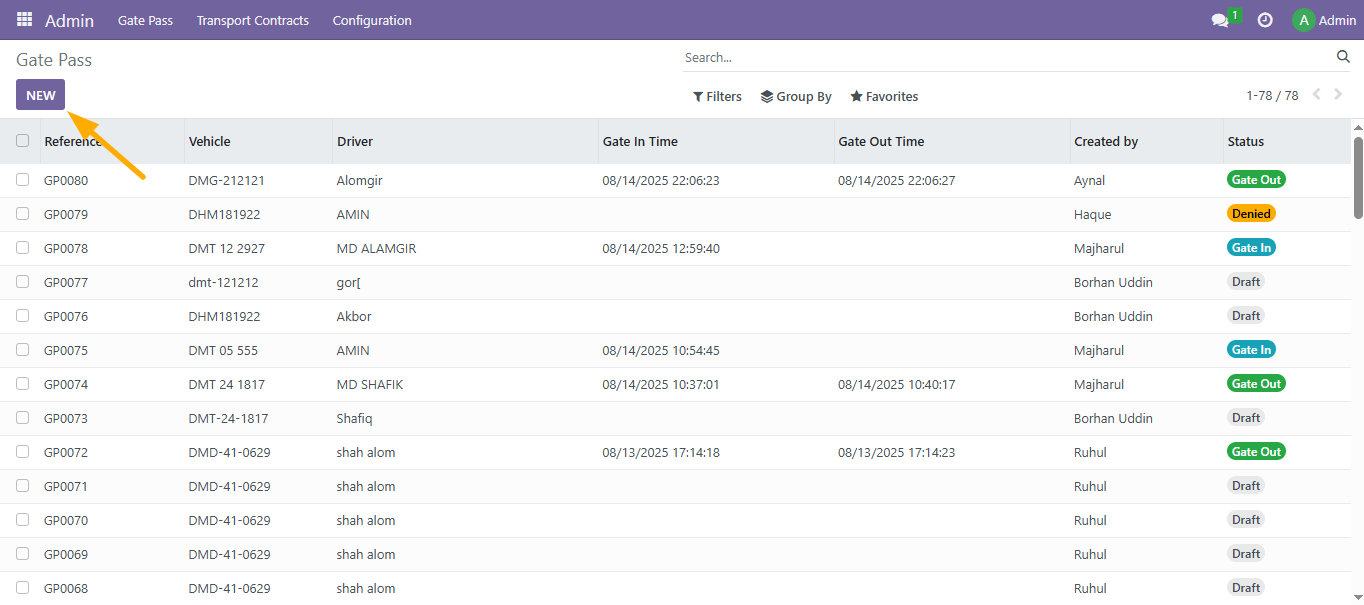
- Click on the Gate Pass menu.
- Click on the New button.
- In the Vehicle input field, enter the vehicle number, search the stored records, and select the correct vehicle from the list.
- In the Driver input field, enter the driver’s name or number, search the stored records, and select the correct driver from the list.
Gate Pass ⮕ New Button⮕ Add Vehicle ⮕ Add Driver ⮕ Save Button
Gate In
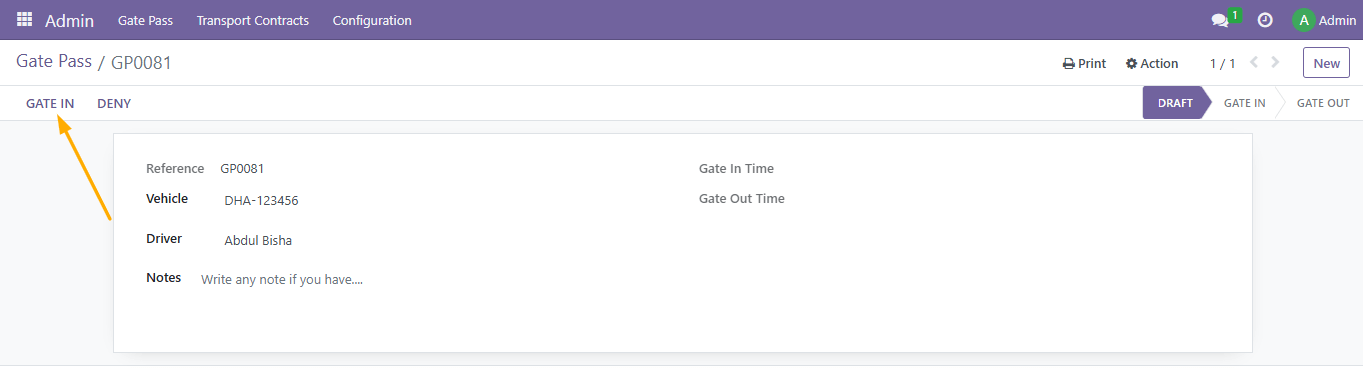
- Click on the Gate In button.
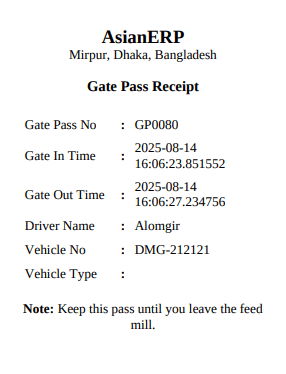
- Then click on the Print button to print the Gate Pass receipt.
Click Gate In ⮕ Print ⮕ Gate Pass Receipt
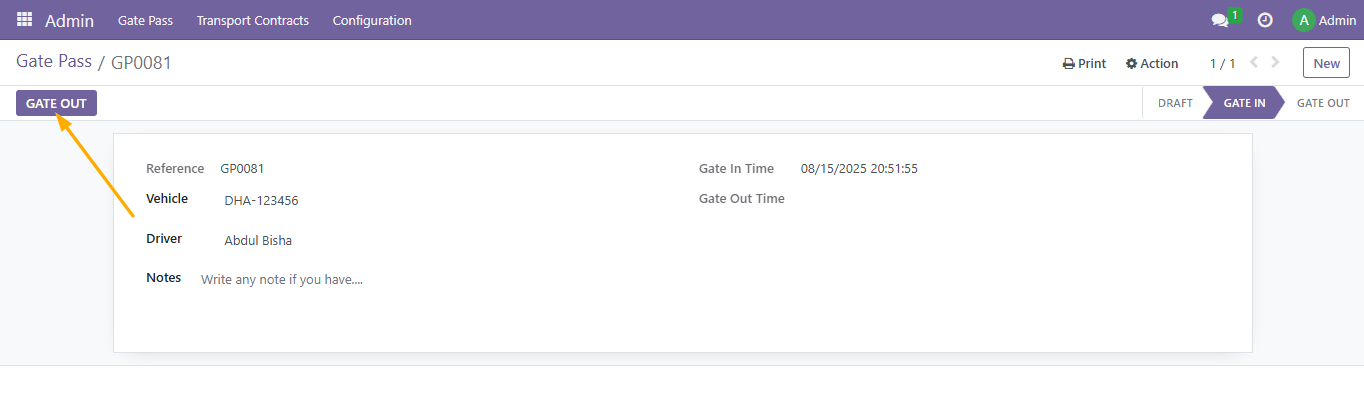
Gate Out
- Search the Gate Pass Number.
- Select the required number.
- Then click on the Gate Out button.
Search Gate Pass Number ⮕ Select ⮕ Click ⮕ Gate Out Button
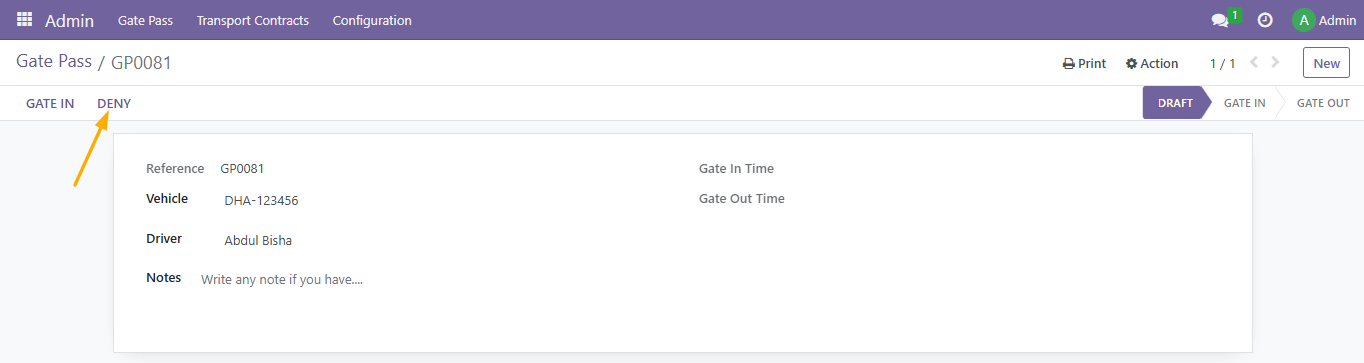
Deny
- Select the relevant Gate Pass.
- Click on the Deny button to cancel the Gate Pass.
Search Gate Pass Number ⮕ Select ⮕ Click ⮕ Deny Button
New Entry
- First, add the new Vehicle separately.
- Then, add the new Driver separately.
- Once both records are saved, go to Gate Pass > Create.
- Select the specific Vehicle and Driver to create the Gate Pass.
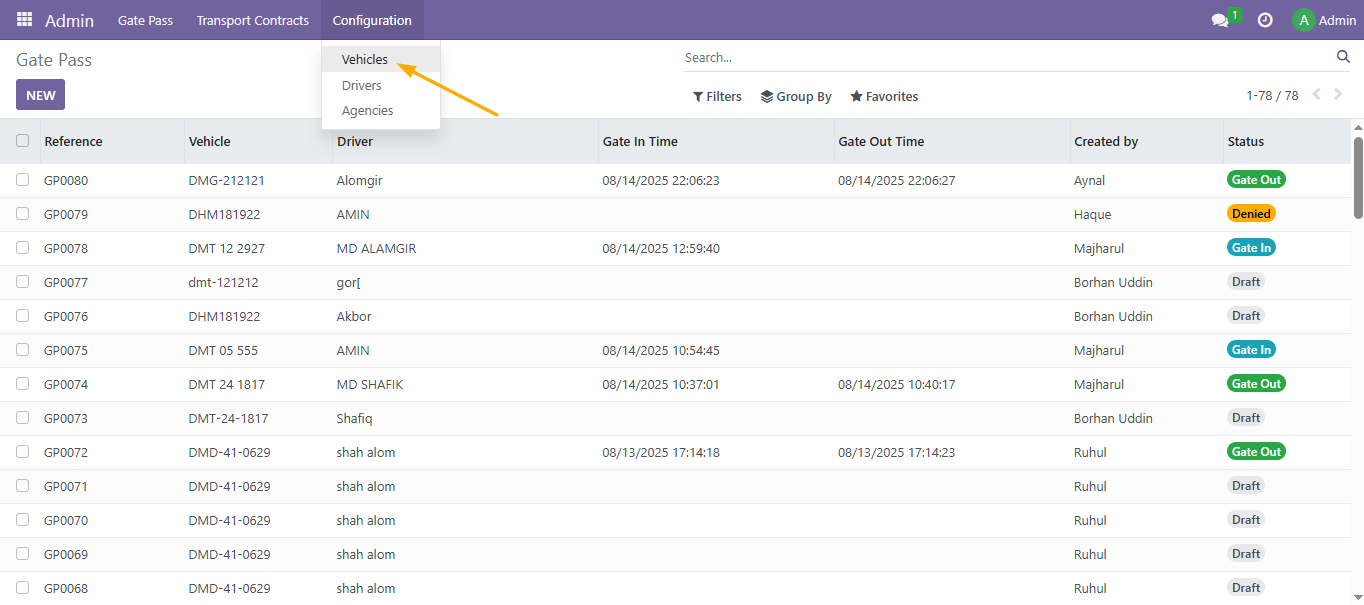
Add Vehicle
- Go to Configuration > Vehicle menu.
- Click on the New button.
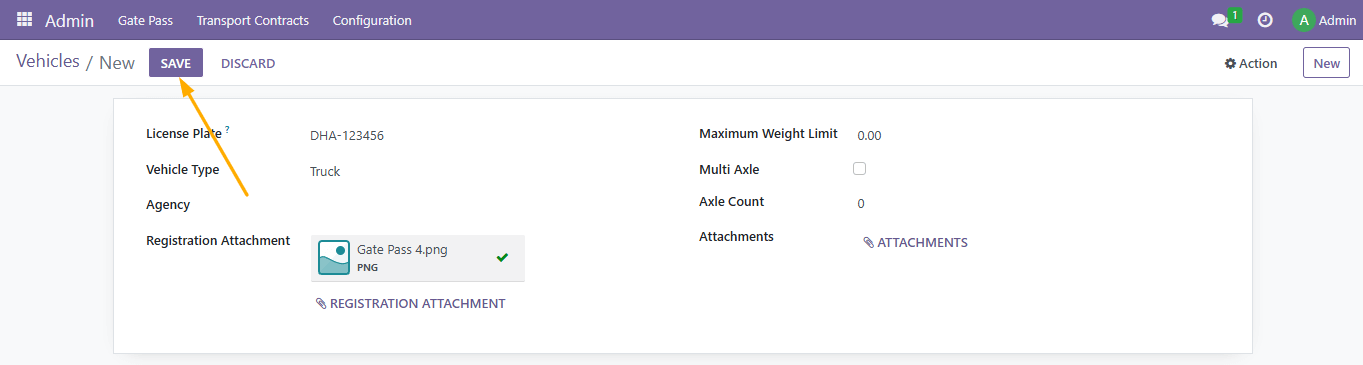
- Enter the License Plate Number.
- Select the Vehicle Type.
- Upload the Registration Document in the Attachment field.
- Finally, click on the Save button.
Configuration ⮕ Vehicle ⮕ New ⮕ Enter License Plate ⮕ Select Vehicle Type ⮕ Attach Registration ⮕ Save
Add Driver
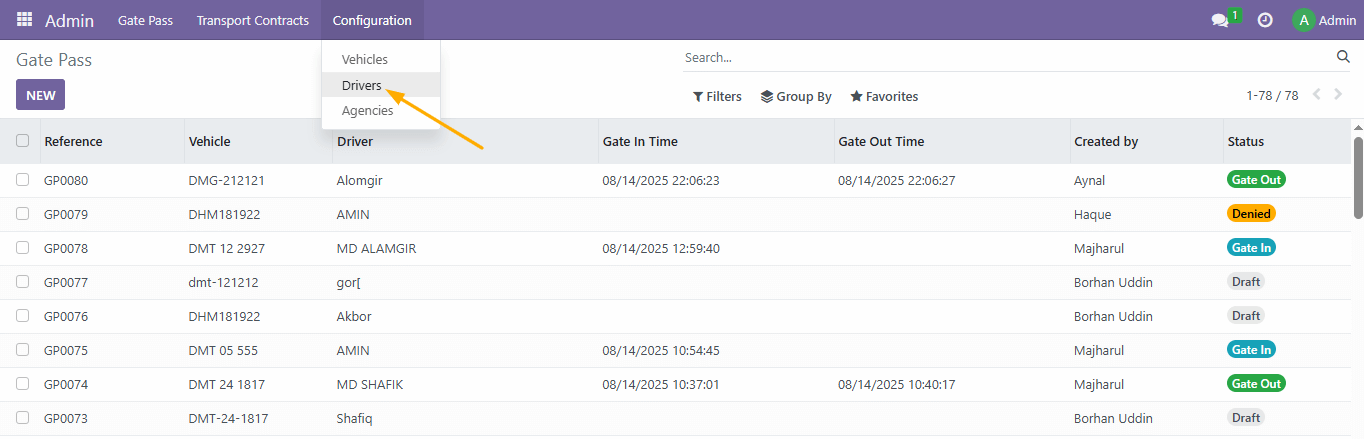
- Click on Configuration > Driver menu.
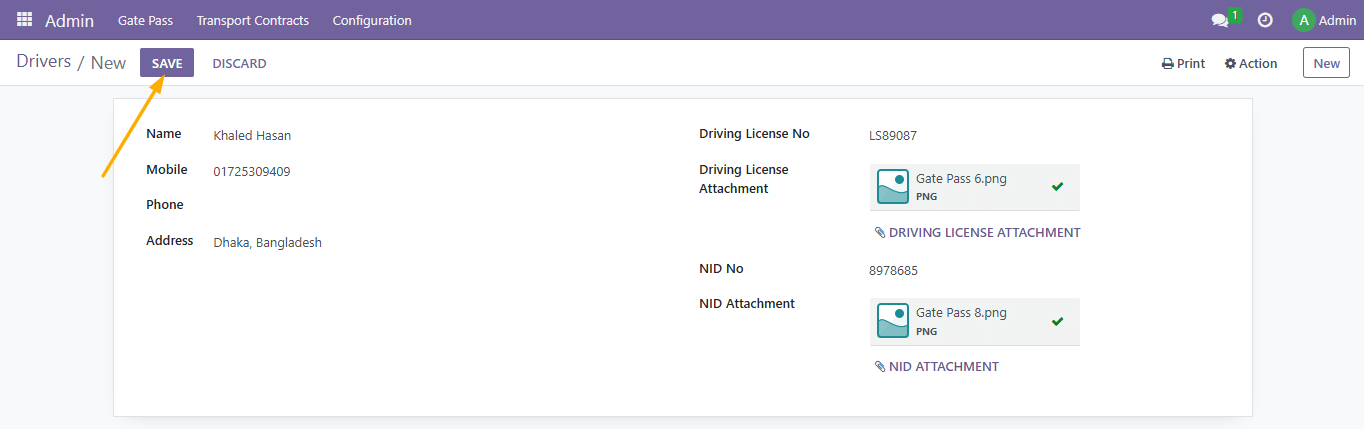
- Click on the New button.
- Enter the Driver Name, Phone Number, Address, Driving License Number, and NID Number.
- Upload the Driving License and NID Document in the Attachment field.
- Finally, click on the Save button.
Configuration ⮕ Driver ⮕ New ⮕ Enter Info ⮕ Attach License & NID ⮕ Save
Gate Pass Status
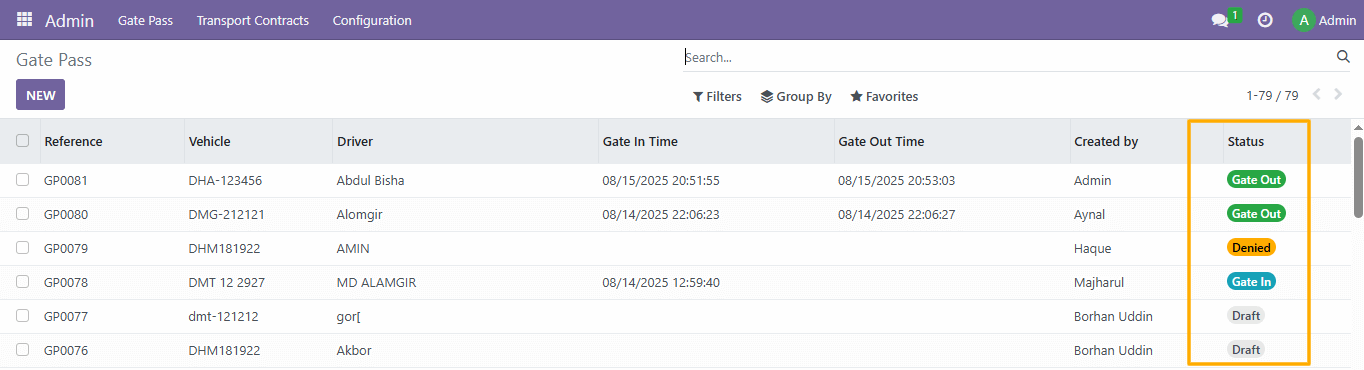
From the Gate Pass menu list, you can view the status of all Gate In and Gate Out records at a glance.